
Why Your Office WiFi Keeps Dropping (and the Real Fix)
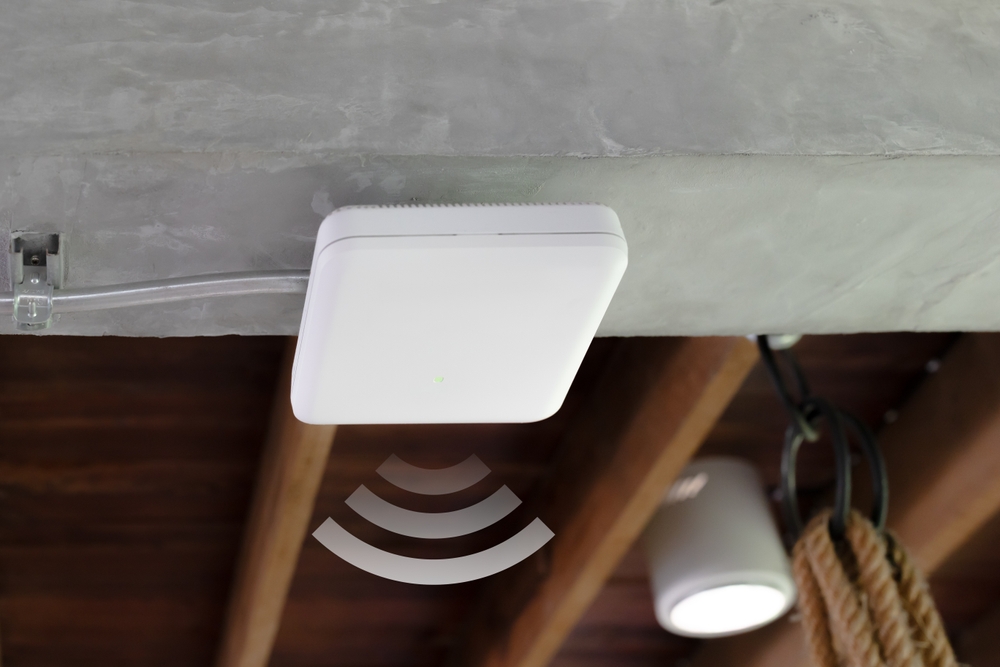
Office WiFi that keeps dropping is almost never a “weak router” problem. In most offices the cause is coverage — one consumer router trying to blanket a whole floor — plus too many devices on a single access point, channel interference, or a wired backbone that was never run. The real fix is proper access point placement on wired backhaul, not a bigger router.
That’s the short answer. The rest is how you confirm which cause is yours, so you spend money on the actual problem — not the one the box on the shelf is marketed to solve.
Why does my office WiFi keep dropping?
WiFi is a shared, half-duplex medium — every device on an access point takes turns talking on the same air. So “the WiFi is bad” almost always traces back to one of a handful of physical realities:
- Coverage from a single router. One router in the server closet cannot cover a full floor through drywall, glass and metal studs. The edges of the office drop because the signal was never really there.
- Too many devices per access point. Laptops, phones, VoIP handsets, printers, cameras and IoT gear add up fast. Pack dozens of active clients onto one consumer AP and everyone slows, then stalls.
- Channel interference (co-channel and adjacent). Your neighbours’ networks, and your own APs, fight over the same channels — especially the crowded 2.4 GHz band. Devices spend more time waiting than transmitting.
- Consumer gear under a business load. A consumer router runs fine at home with a handful of devices. Under an all-day office load it overheats, its NAT table fills, and it reboots itself — which reads to you as “the WiFi dropped.”
- No wired backhaul. Mesh nodes that talk to each other over WiFi (instead of a network cable) cut usable throughput roughly in half at every hop. Two or three hops in, calls stutter.
- Cabling and PoE problems. A marginal cable run, a bad termination, or an access point starved of power over a long run will flap on and off all day.
- DHCP/DNS misconfiguration. If two devices hand out IP addresses, or the DHCP pool is too small, clients silently lose their lease and “drop.” DNS that resolves slowly feels identical to a dead connection.
- Stale firmware. Known bugs that cause radios to reset are fixed in firmware most offices never install.
Notice what’s not on that list: “you need a stronger router.” A more powerful radio just shouts louder into the same congested air — it rarely fixes coverage, and never fixes device count, backhaul, cabling or DHCP.
WiFi keeps dropping: a diagnostic path
Work these steps in order. The goal is to isolate the fault — one device or all, one area or everywhere, wireless-only or the whole network — before you buy anything. This is the office network troubleshooting sequence we run on a real site visit, compressed.
- One device or all of them? If a single laptop drops but everyone else is fine, it’s that device — its WiFi adapter, driver, or a full profile — not your network. Fix the endpoint and stop here.
- One area or everywhere? Walk the floor. If it only drops in the far corner, boardroom or warehouse, you have a coverage problem — a placement issue, not a router issue. If it drops everywhere at once, look upstream (ISP, DHCP, the router itself).
- Does wired stay up when WiFi drops? Plug a laptop into the wall with a cable during an outage. If the wired connection holds while WiFi dies, the problem is in the wireless layer — APs, channels, interference. If wired drops too, it’s your router, switch, DHCP/DNS, or the internet line.
- Is it the internet or your LAN? During a drop, can you reach another device inside the office (a printer, a NAS, the router’s admin page)? If internal traffic works but the internet is gone, the fault is your ISP or the router’s WAN side — not WiFi at all.
- What does a reboot actually prove? If a reboot fixes it for a few hours and it returns on a schedule, that’s the fingerprint of overheating consumer gear, a filling NAT/DHCP table, or a firmware bug — not “bad luck.”
- Time of day / device count. Does it die at 9:15 a.m. when everyone logs on, or when the boardroom fills for a call? That’s capacity — too many clients per AP, or too little backhaul behind them.
- Survey the coverage and channels. A quick WiFi scan (many free phone apps do it) shows overlapping networks and which channels are jammed. If your APs and three neighbours all sit on the same 2.4 GHz channel, congestion is your answer.
By step 7 you almost always know whether you’re buying coverage (more/better-placed APs), capacity (more APs or a wired backbone to offload them), or stability (getting off consumer gear, fixing cabling/DHCP/firmware). That’s the whole point — spend on the confirmed cause.
Common office network setup mistakes
The same handful of decisions cause most of the trouble we get called about:
- Treating one router as the whole network. Home-grade “does everything” boxes hit a wall in an office. Routing, switching and WiFi in one plastic case means every job is done adequately and none done well.
- Placing the AP where the wires end, not where people sit. Access points get mounted in the closet next to the patch panel because that’s convenient — then everyone works two rooms away through a wall.
- Skipping the wired backbone. Every access point should ideally reach the switch over a network cable (wired backhaul). Wireless-only mesh is a stopgap, not a plan.
- Ignoring PoE budget. Cameras, phones and APs all pull power over Ethernet. Overload a cheap switch’s PoE budget and devices brown out and reboot — which, again, looks like “the WiFi dropped.”
- One flat network for everything. Guests, cameras, IoT and staff all on one subnet means one broadcast storm or one DHCP problem takes down the office. VLANs on a managed switch keep failures contained.
- Set-and-forget firmware. The update that fixes your exact radio-reset bug shipped months ago and nobody applied it.
Wired vs wireless network: which is better?
Neither wins outright — the right answer is “wired backbone, wireless edge.” Run cable to everything that stays put, and use WiFi for the things that move. Here’s when to reach for each:
| Use case | Best choice | Why |
|---|---|---|
| Desktops, printers, VoIP phones, cameras | Wired | Rock-solid, full speed, no airtime contention, PoE for power |
| Access points themselves (backhaul) | Wired | Wireless backhaul roughly halves throughput per hop |
| Laptops, phones, tablets, guests | Wireless | They move; wiring them isn’t practical |
| Boardroom video calls, screen share | Wired where possible | Calls punish jitter; a cable removes the biggest variable |
| Temporary desks, hard-to-reach corners | Wireless (well-placed AP) | No cable path, or cabling not worth it yet |
The pattern: put the wireless access points on wires, and let the wireless network do what it’s actually good at — mobility. An office that follows this rule stops “dropping.”
Honest tradeoffs: when a mesh is fine and when it isn’t
Not every office needs a rack of managed gear, and we’ll tell you when you don’t.
A prosumer mesh system is genuinely fine when: you’re a small office — say under ~15 people in an open, mostly single-floor space — with a couple of dozen devices, no cameras or VoIP to speak of, and at least one wired backhaul point between nodes. Buy a reputable two- or three-pack, wire the nodes to your switch if you can, put them where people actually sit, and you’ll likely be happy. More than that would be us selling you something you don’t need.
You’ve outgrown mesh — and need proper access points, a managed switch and structured cabling — when any of these are true:
- More concurrent devices than a single access point comfortably handles, or growth coming.
- More than one floor, long/narrow layouts, warehouse, or lots of glass and metal.
- VoIP phones, security cameras or video conferencing that must not stutter.
- Guest, staff and device traffic that should be separated (VLANs).
- You’ve already tried “a better router” or another mesh and it didn’t hold.
At that point the cheapest path isn’t another gadget — it’s a designed layer: cabling run to where APs belong, a managed PoE switch, business access points, and DHCP/DNS set up once, correctly. If you’re weighing that against adding more consumer boxes, our enterprise networking and structured cabling team can survey the space and put the honest number in writing before anything is ordered.
Frequently asked questions
Will a stronger or more expensive router fix my dropping WiFi?
Usually not. A stronger router shouts louder into the same congested air, but it doesn’t add coverage where the signal never reached, doesn’t offload a crowded access point, and doesn’t fix cabling, PoE or DHCP. If the problem is coverage or capacity — and in offices it usually is — the fix is more, better-placed access points on wired backhaul, not a bigger single box.
How do I set up a wireless router correctly in an office?
For anything beyond a very small office, don’t rely on the router’s built-in WiFi to cover the floor. Put the router near your internet line, run cable to separate access points placed where people actually work, use a managed PoE switch for those APs and any cameras or phones, and set a single DHCP source with a pool big enough for every device. Update firmware on day one, then on a schedule.
How many devices can one access point handle?
There’s no fixed number — it depends on what the devices do — but a good rule of thumb for a business-grade AP is a few dozen active clients before performance suffers, and far fewer if they’re all on heavy video calls. Consumer routers hit trouble much sooner. If your WiFi dies every morning when everyone logs on, you’ve found a capacity limit, and the answer is more access points, not a stronger one.
Is my WiFi dropping because of my internet provider or my own network?
Test it directly: during a drop, try to reach another device inside your office — a printer, a NAS, or the router’s admin page. If internal traffic still works but the internet is gone, the fault is your ISP or the router’s internet (WAN) side. If you can’t reach anything, even over a wired cable, the problem is inside your own network — the router, switch, or DHCP/DNS.
Do I really need cabling, or can mesh WiFi cover the whole office?
Mesh can work for a small, open office, especially if you wire the nodes together. But wireless-only mesh loses roughly half its throughput at each hop, so in a larger or multi-floor space it stutters exactly when you need it most — on calls and video. Structured cabling to each access point (wired backhaul) is what turns “usually fine” into “reliable.”
Why does rebooting fix it for a few hours and then it comes back?
That pattern — fine after a reboot, dead again by afternoon — usually points to consumer gear overheating, a NAT or DHCP table filling up, or a known firmware bug that resets the radio. A reboot clears the symptom temporarily; it doesn’t remove the cause. If a reboot is your daily ritual, the real fix is business-grade equipment, a correct DHCP setup, and current firmware.
For the network itself, if you want someone to survey your space and give you a written plan instead of a guess, that’s what our enterprise networking and structured cabling service does. We’re based in Brampton and work across the GTA. And if the meeting room is the real pain point, our companion guide on what a reliable meeting room actually needs picks up where this article leaves off.
Ready to plan your project?
Tell us what you want to build, fix or upgrade — a Techspirit Solutions specialist will help.